
Introduction
IBM Access Client Solutions (ACS) is a powerful desktop tool used to manage IBM i (formerly AS/400 or iSeries) systems. One of its most useful features is the ability to view and manage spool files directly from output queues. This makes it easier for administrators and users to monitor printing, check job results, and solve issues quickly.
What Are Spool Files and Output Queues?
Spool files are temporary files created when a job wants to print or display output.
Output queues act like holding areas where these spool files wait until someone views them or sends them to a printer.
ACS gives you a clear view of these queues and helps you manage spool files without needing complicated commands.
Why ACS Makes Spool File Management Easier
- Easy-to-Use Interface: ACS provides a simple graphical screen. You do not need to remember commands—just point, click, and manage.
- Real-Time Updates: You can see spool files and their status instantly. This helps you quickly identify stuck jobs or printing issues.
- Works from Anywhere: Because ACS supports remote access, you can manage spool files even when you are not in the office.
- Better Team Collaboration: You can download spool files as PDF or TXT and share them easily with teammates for review, auditing, or troubleshooting.
- Saves Paper and Cost: The “View Only” and “Download” options help reduce unnecessary printing and support eco friendly practices.
- Quick Searching and Filtering: If your output queue has hundreds or thousands of files, for example, you can filter them by job name, user, status, or date/time.
- Manage Many Files at Once: ACS allows batch actions like holding, releasing, moving, or downloading multiple spool files together.
- Better Error Handling: If there is a problem in a spool file, you can Hold it immediately to prevent printing, fix the issue, and then release it.
- Flexible Download Formats: You can download spool files as PDF files, TXT, or other text formats as well as customize the look and formatting.
- Helps with Audits: Businesses can store downloaded spool files for compliance, auditing, or history tracking.
- Easy Queue Management: You can move spool files from one queue to another if you want to send them to a different printer or team.
- Scales for Large Systems: Whether your system has 10 or 10,000 spool files, ACS handles everything smoothly.
- No Need for Complex Commands: You do not need to use WRKSPLF or WRKOUTQ. Everything is available with simple clicks.
- Catch Problems Early: With direct visibility into queues, administrators can find and fix issues before they become serious.
Step-by-Step: How to View Spool Files in ACS
Step 1: Open ACS
- Launch ACS on your desktop.
- Log in to your IBM i system with your credentials.
Step 2: Open Output Queues
- From the main ACS window, click Printer Output.
- A list of all output queues will appear.
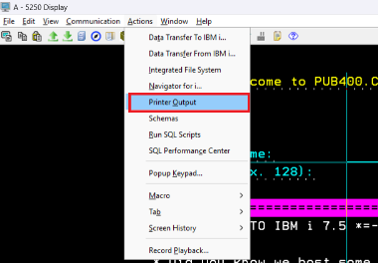
Step 3: Select an Output Queue
- Find the queue you want (like QPRINT or any custom queue).
- Double-click it to see all spool files inside.
Step 4: View Spool Files
You will now see details like:
- File Name
- Job Name
- User
- Status (Held, Ready, Printed)
- Click on a spool file to act.
Step 5: Actions You Can Take on Spool Files
Right-click any spool file to see these options:
- Download Only: Saves the spool file to your computer without opening it.
- Download and View: Downloads the file and opens it immediately.
- Download: Lets you choose file format (PDF, TXT), layout, location, etc.
- View Only: Opens the spool file directly inside ACS without downloading it.
- Hold: Pauses printing or further processing.
- Release: Allows a previously held spool file to continue.
- Move: Moves the spool file to another output queue.

Step 6: Filter and Sort
Use the filter and sort options to quickly find:
- Specific jobs
- Usernames
- Dates
- Statuses
You can click column headers to sort the list easily.
Step 7: Exit
When finished, close the queue window or return to the main ACS menu.
Conclusion
ACS makes spool file management easy, fast, and modern. Instead of relying on old command-line tools, it gives users a clean and friendly interface. Whether you are a developer, operator, or system admin, ACS helps you work smarter and more efficiently with IBM i output queues.