

Introduction
IBM i Access Client Solutions (ACS) is a smart and modern tool that makes working with IBM i systems easier and more streamlined. One of its helpful features is the ability to customize the display cursor and text options in your 5250-emulation session. These settings let you control how your cursor looks, behaves, and how text appears on your screen. In this guide, we’ll be walking through the various settings in ACS and what they mean for the user.
Step-by-Step: How to Set Cursor & Text Options in ACS
Step 1: Launch ACS
Make sure ACS is installed. If not, you can download it from the IBM website.
Once installed, open the IBM i Access Client Solutions application.
Step 2: Open Cursor & Text Settings
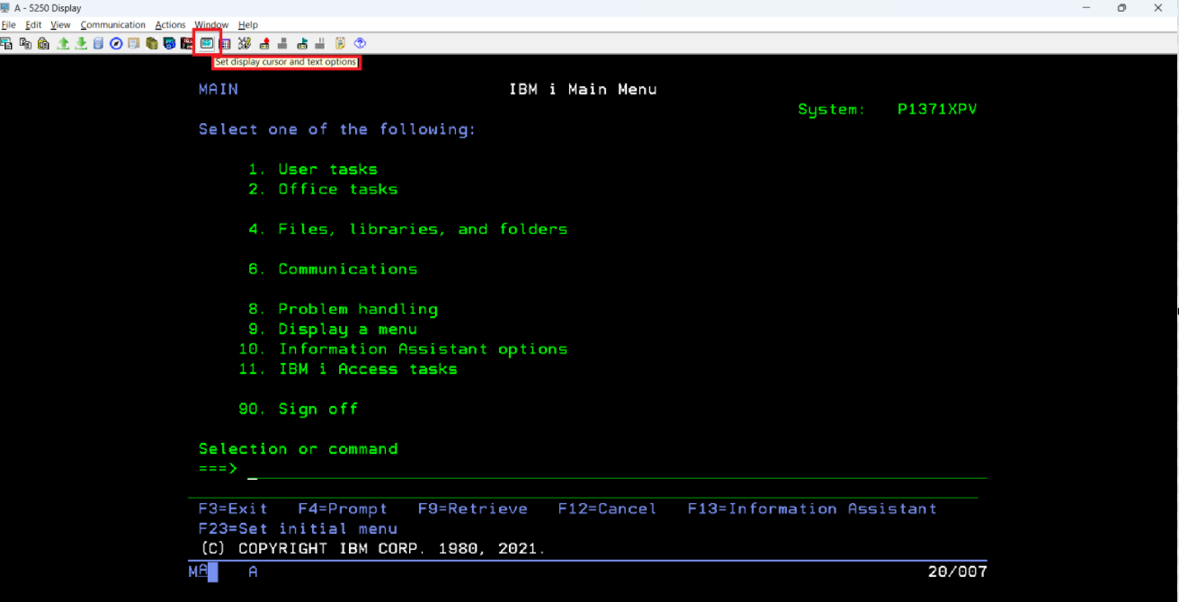
In the ACS main window, click on the “Set Display Cursor and Text Options” icon.
A new window will open where you can customize cursor shape, pointer style, blinking options, text behavior, and more.
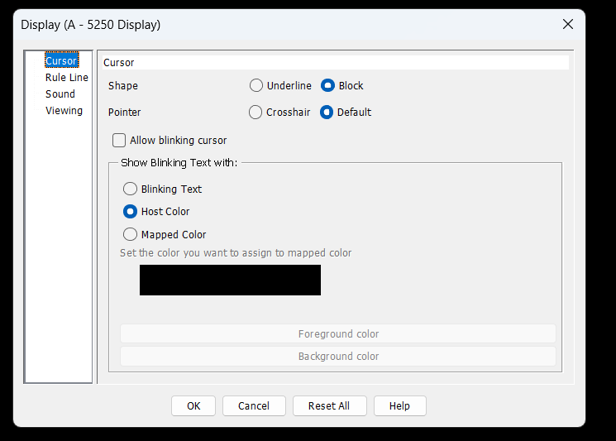
Cursor and Text Customization Options
- Cursor Shape: Underline or Block
- Underline: A thin line under the text. Simple and not distracting.
- Block: A solid block covering the entire character. Very easy to see.

Pointer Style: Crosshair or Default
- Crosshair: Shows a cross (+). Great for accuracy. Helps when working with detailed screens or small text.
- Default: Normal mouse pointer.

Allow Blinking Cursor
- Checked: Cursor blinks to help you find it easily
- Unchecked: Cursor stays still

Show Blinking Text
Some IBM i applications show important information by blinking text.
Options include:
- Blinking Text: Turn blinking on or off
- Host Color: Use the system’s default blinking color
- Mapped Color: Choose your own color for blinking text
Rule Line: Better Readability & Focus
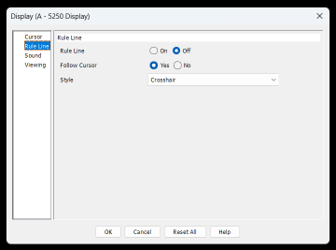
1. Rule Line (On/Off)
- On: Shows a guideline so you can follow rows easily
- Off: No guideline

2. Follow Cursor (Yes/No)
- Yes: Rule line follows your cursor
- No: Rule line stays fixed

3. Rule Line Style
- Crosshair: Shows both horizontal and vertical lines
- Vertical: Only shows a vertical guide

Clicker & Sound Settings
ACS also lets you control sound notifications.
1. Normal
- Description: Plays a standard click sound for each keypress or interaction.
- Use Case: Ideal for users who prefer audible feedback for every action, helping confirm that input has been registered.
2. Off
- Description: Disables all clicker sounds.
- Use Case: Best for quiet environments or when users want a distraction-free experience without any sound feedback.
3. Error
- Description: Only plays a sound when an error occurs, such as invalid input or a failed command.
- Use Case: Useful for users who want to be alerted only when something goes wrong, reducing unnecessary noise while still catching critical issues.
4. Mute
- Purpose: This toggle lets users turn all sound notifications On or Off.
- Use Case: Useful in quiet environments or shared workspaces where sound alerts might be disruptive. Turning off sound can also help reduce distractions during focused work.
5. Alarm
- Purpose: This setting controls whether the alarm sound is enabled or disabled.
- Use Case: Critical for users who rely on sound alerts for system warnings or important notifications. Keeping it on ensures that alarms are not missed.
6. Global Sound Settings
- Purpose: This section lists various sound events that can be customized:
- Alarm
- Error Clicker
- Normal Clicker
- Connection Complete
- Disconnection Complete
- Paste Incomplete
- Use Case: Allows fine-grained control over which events trigger sounds. Users can assign different sound files to each event, making it easier to distinguish between them.
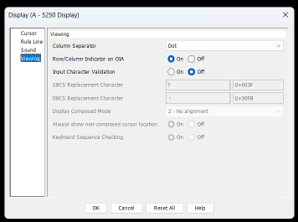
Column Separator Options
These help you see data more clearly in 5250 sessions:
- Dot: Small dots between columns—clean and subtle.
- Off: No separators—best for a clean display.
- Line: Vertical lines between columns—great for complex screens.
Row/Column Indicator on OIA
Controls if the cursor position is shown on the bottom bar.
1. On
- Shows row and column numbers.
- Great for large screens and debugging.
2. Off
- Hides the indicator—cleaner look.
Input Character Validation
Ensures that only valid characters are entered.
- On: Checks input for valid characters
- Off: Does not validate input
Useful for preventing typing mistakes in sensitive fields.
Conclusion
IBM ACS provides many helpful options to customize your cursor, text display, sounds, and screen layout—making your 5250 sessions more comfortable and easier to use. These small adjustments can greatly improve readability, reduce strain, and help you work faster and more accurately.